Client Delivery & Sharing
Damask replaces the WeTransfer link and the Dropbox shared folder with a purpose-built client delivery workflow. Share a clean gallery, protect it with a password, set an expiry date, and let clients leave feedback directly on individual files - without creating an account.
Creating a share link
Share links can be created from two places:
- From the library - hover over a project name in the sidebar and click the share icon, or open the project detail page and click Share project
- From an asset - open the asset detail panel and click Share asset in the header
Both open the same share creation panel.
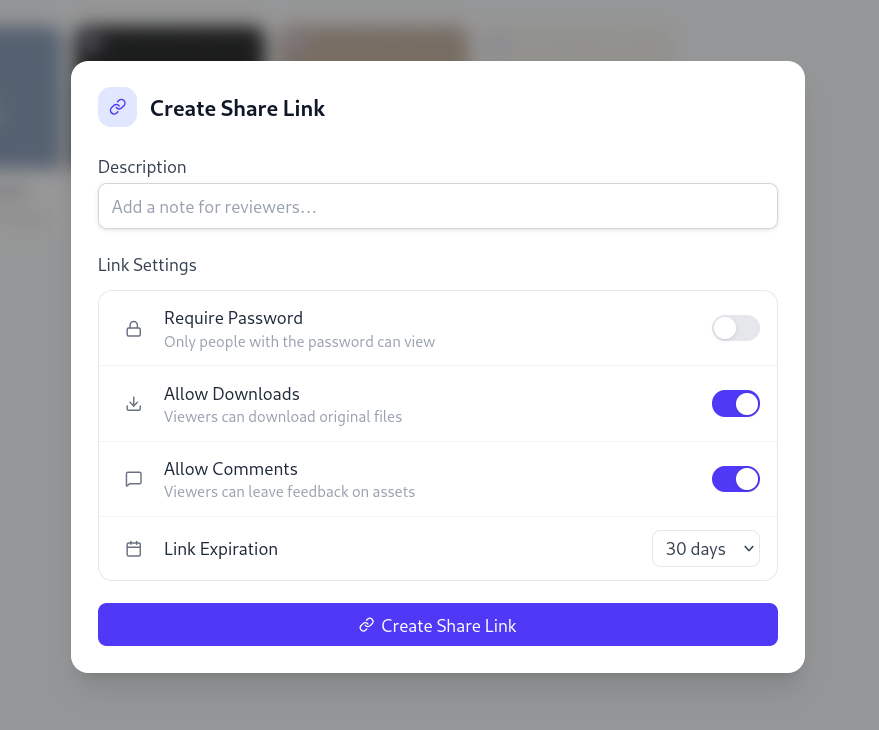
Share settings
| Setting | Description |
|---|---|
| Label | A human-readable name for your reference (e.g. "Nike Q3 - Client Delivery") |
| Target | The project or individual asset being shared |
| Password | Optional. Recipients must enter this before viewing |
| Expiry | Optional. The link stops working after this date |
| Allow comments | Whether clients can leave comments on assets |
| Allow download | Whether clients can download the original files |
After saving, a copy-to-clipboard button shows the generated link.
Managing existing share links
Go to Settings → Shares to see all share links across your workspace. Each entry shows:
- Label and target
- Status pill: active, expires in N days, expired, or revoked
- View count
- Comment count
- Options to copy, edit, or revoke
The client gallery
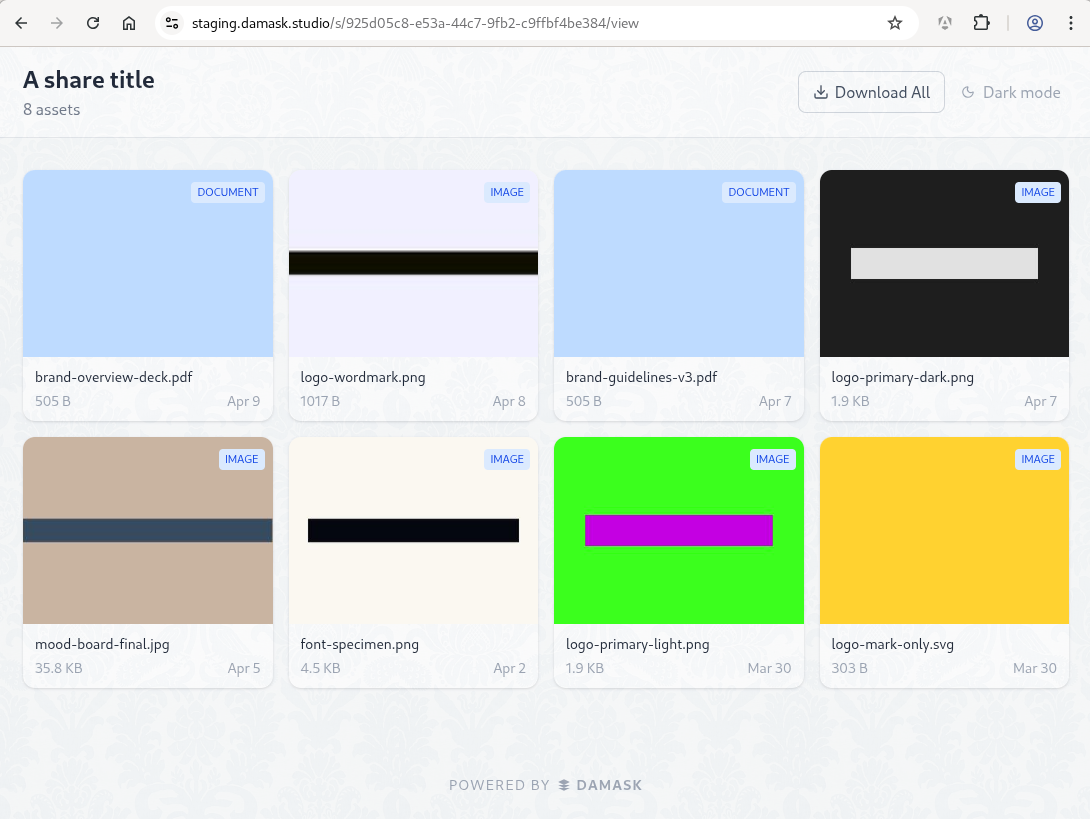
When a recipient opens a share link, they see a clean, minimal gallery - no Damask chrome, no sidebar, no workspace context. Just the shared content.
Password gate
If the share has a password, the recipient sees a password form before the gallery. On success, a session cookie is set for 24 hours - they won't be asked again on the same device.
If the link has expired, they see a clear "This link has expired" message rather than a broken page.
Gallery view
The gallery shows a virtual-scrolled grid of asset thumbnails. The header shows the share label and, if download is enabled, a Download all button.
Clicking an asset opens the review panel.
Asset review panel
The review panel shows:
- Full asset preview (image, video player, or document thumbnail)
- A Download button (if downloads are allowed)
- The comment thread for that asset (if comments are enabled)
Client comments
When Allow comments is enabled, clients can leave feedback directly on individual assets inside the gallery.
Leaving a comment
The comment form asks for:
- Name - required, free text (e.g. "John (Sportswear Co)")
- Email - optional, for follow-up
- Message - the comment body
No account creation, no login. The name is the identity.
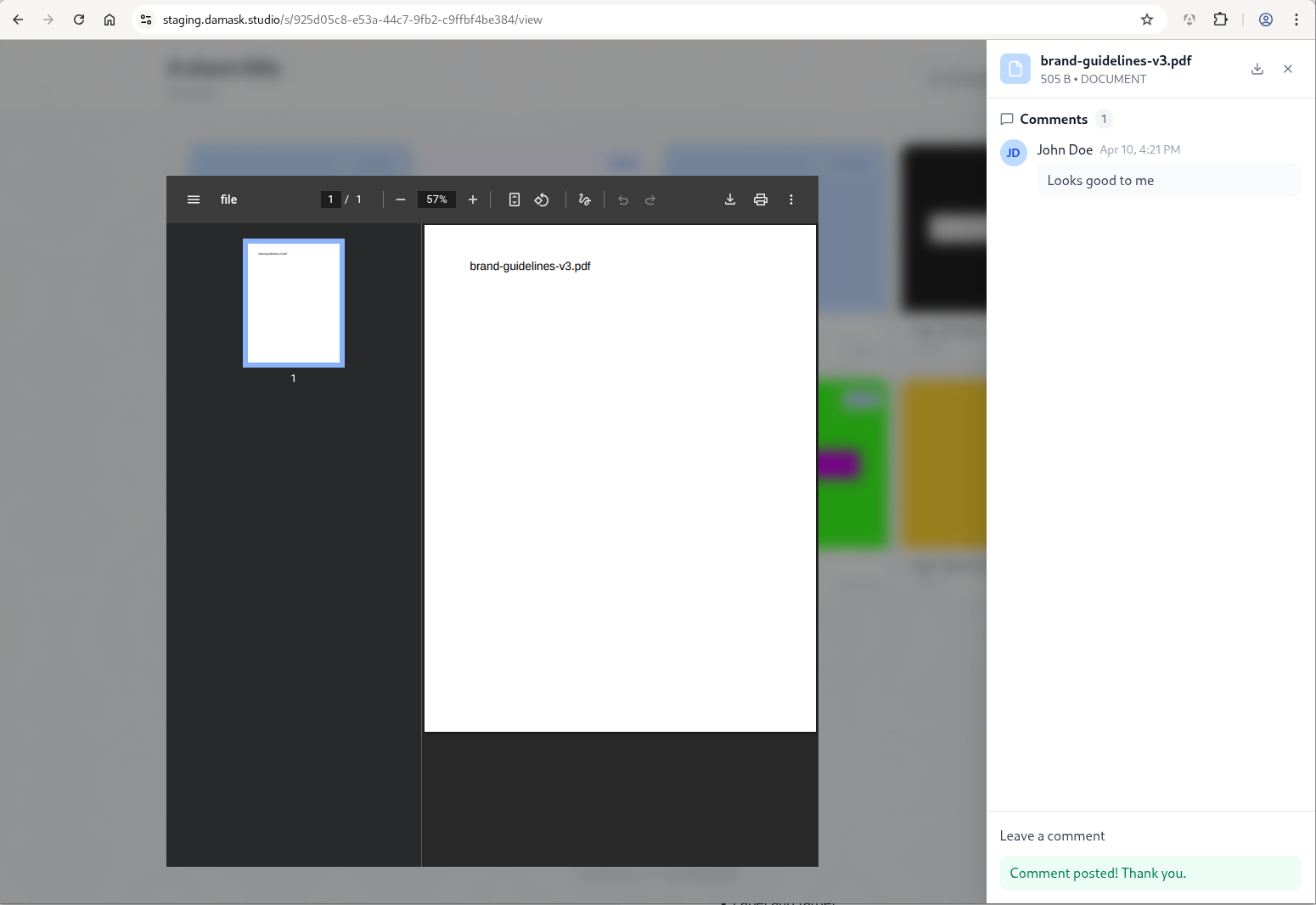
Viewing received comments
Comments appear in two places:
- The asset detail panel - the Activity tab shows all comments received via share links, alongside internal events
- Settings → Shares - click any share to see all comments received on that share, grouped by asset
Moderating comments
Open a share in Settings → Shares and switch to the Comments tab. Any comment can be deleted from here. Deleted comments are permanently removed.
Revoking a share link
Click Revoke on any share in Settings → Shares. The link immediately stops working - recipients who open it see a "This link has been revoked" message.
Revocation is soft - the share record is retained in your history. This is intentional: you want a 410 Gone response rather than a 404 Not Found if a client reopens an old link.
TIP
You cannot un-revoke a share link. If you need to restore access, create a new share link with the same settings.
View tracking
Every time someone successfully accesses a share link (past the password gate), the view count increments. This is visible in Settings → Shares.
Individual download events are also logged in the asset's activity log (with the share link noted as the source).
"Powered by Damask" footer
The client gallery includes a small "Powered by Damask" note in the footer. This is Damask's organic discovery mechanism - clients exploring your deliveries may become users themselves.
Custom branding (your own logo in the gallery header) is a planned feature for a future release.