Version History & Audit Log
Damask tracks two distinct kinds of change: binary versions (when the file itself changes) and metadata events (when anything else changes - a rename, a tag, a field value, a share). Together they give you a complete, tamper-evident record of every asset's life.
Version history
How versions work
Every asset in Damask has an identity (its id) that never changes, and a version history that grows over time. When you upload a new version of a file, the original is preserved. The asset's name, project, tags, and custom fields remain unchanged - only the file bytes change.
Versions are numbered monotonically: v1, v2, v3… Numbers are never reused, even if intermediate versions are deleted.
Uploading a new version
Open the asset detail panel and click Upload new version in the header. A minimal upload modal opens:
- Drop zone (single file - new versions are always one file at a time)
- Optional comment field ("What changed in this version?")
The file type should match the original's category - you'll see a warning if you replace a JPEG with an MP4, though Damask won't block it.
After upload, the new version becomes current immediately. The old version is preserved in the history tab.
Viewing version history
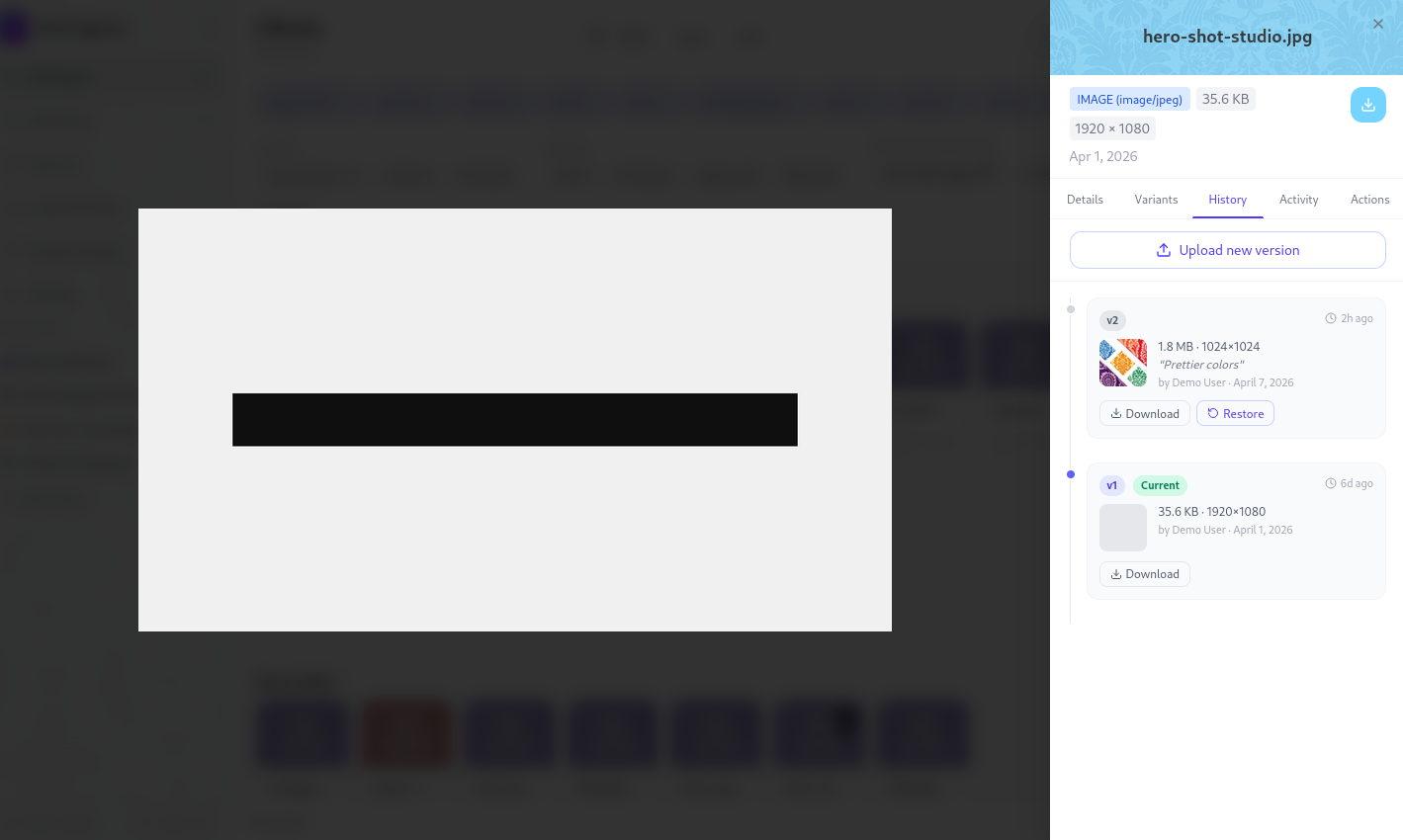
Open the asset detail panel and click the History tab. Each version shows:
- Version number badge (
v3,v2,v1) - Thumbnail
- File size and dimensions
- Upload comment (if set)
- Uploader name and relative timestamp
- A current badge on the active version
Rolling back to a previous version
Click Restore on any non-current version. A confirmation dialog appears showing who uploaded that version and its comment. Confirm to restore.
Rolling back is non-destructive. The version you roll back from is not deleted - it stays in the history and can be restored again at any time.
WARNING
If a version is being used as a project icon or workspace icon, it cannot be deleted. You'll see a warning explaining which project references it. Update the icon first, then delete the version.
Deleting a version
Click Delete on any non-current version (owners only). You cannot delete the current version - restore another version first, then delete the one you want to remove.
Deletion is a soft delete. The file is retained for a grace period before being physically removed from storage.
Version retention policy
By default, all versions are kept indefinitely. You can configure a retention cap in Settings → Workspace → Version history: choose to keep the last N versions per asset (1–50). A nightly job soft-deletes versions beyond the cap. The setting change takes effect on the next scheduled run.
A warning is shown if the new cap is lower than the current maximum version count across your workspace.
Content deduplication
If you upload a file that is byte-for-byte identical to an existing version of the same asset, Damask detects this and returns a 409 Conflict with the message "This file is identical to the current version." No duplicate storage is written.
Activity log
The activity log is an append-only record of every meaningful event on an asset or project. Unlike version history (which tracks file changes), the activity log tracks metadata changes: renames, tag additions, field value updates, share link creation, ownership transfers, and more.
Viewing the activity log
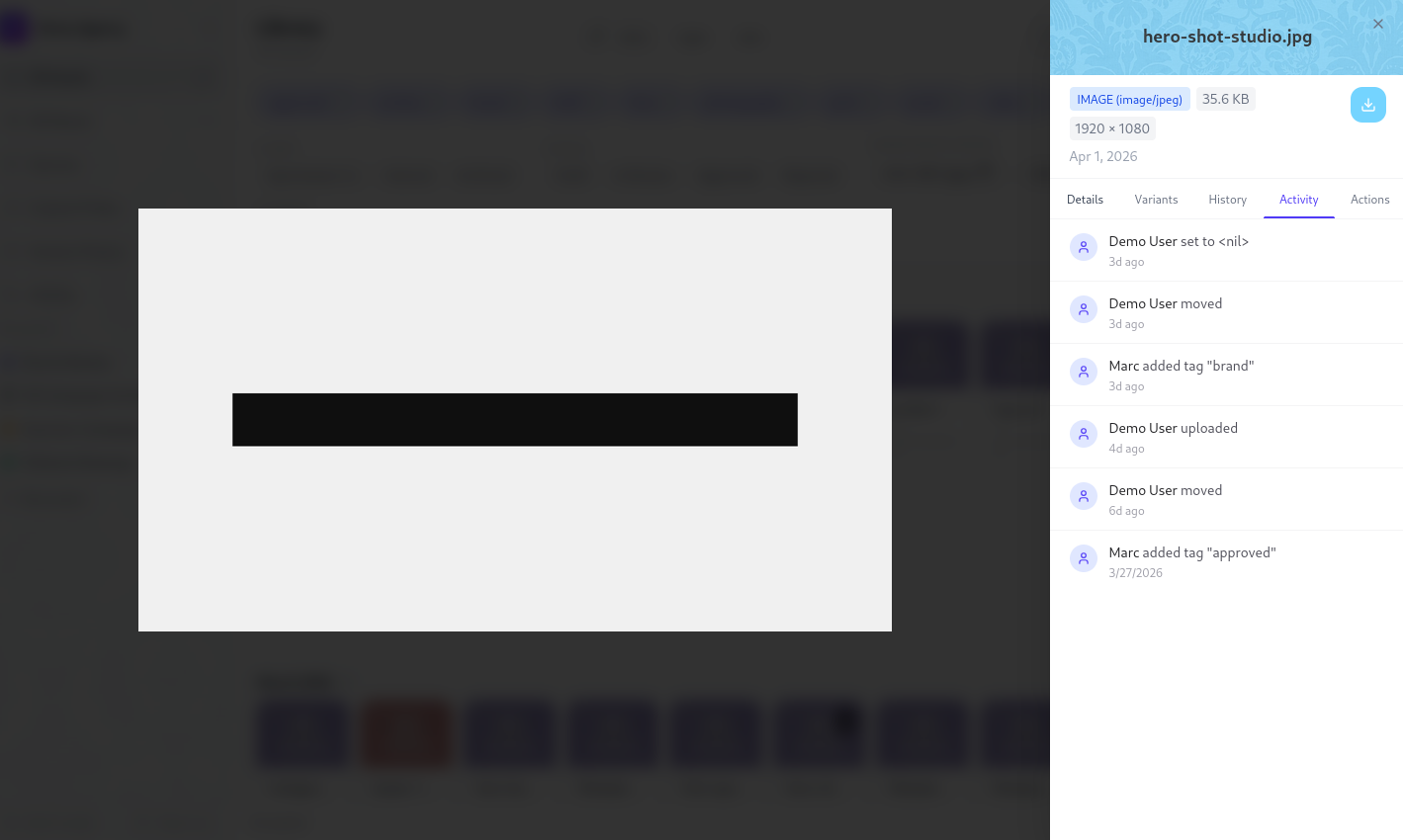
Open the asset detail panel and click the Activity tab. Events are listed newest first, each showing:
- Actor avatar and name (or "system" for automated events)
- A human-readable description of what changed
- Relative timestamp
Events from the same actor within a 5-minute window are grouped into a collapsed entry ("Alice made 3 changes - 2 hours ago"). Click to expand.
Event types
| Event | What it records |
|---|---|
| Uploaded | New asset or new version, with version number |
| Renamed | Old and new filename |
| Moved | Origin and destination project/folder |
| Tagged / Untagged | Tag name |
| Field set | Field name, old value, new value |
| Field cleared | Field name and removed value |
| Version restored | Which version was restored and from which |
| Shared | Share link created, expiry if set |
| Share revoked | Share link ID |
| Downloaded | Via direct download or share link |
| Deleted / Restored | Soft delete and recovery |
System events
Some events are generated by Damask automatically, not by a human action. These include:
- Assets ingested from an ingress source (shows the source name)
- Thumbnail generation completion
- Version purges from the retention policy
System events appear in the log with an italicised "system" actor label.
Project activity
The project detail page has its own Activity tab showing events scoped to that project - both project-level changes (renames, field updates, archived status) and a summary of recent asset activity within the project.
Workspace-wide feed
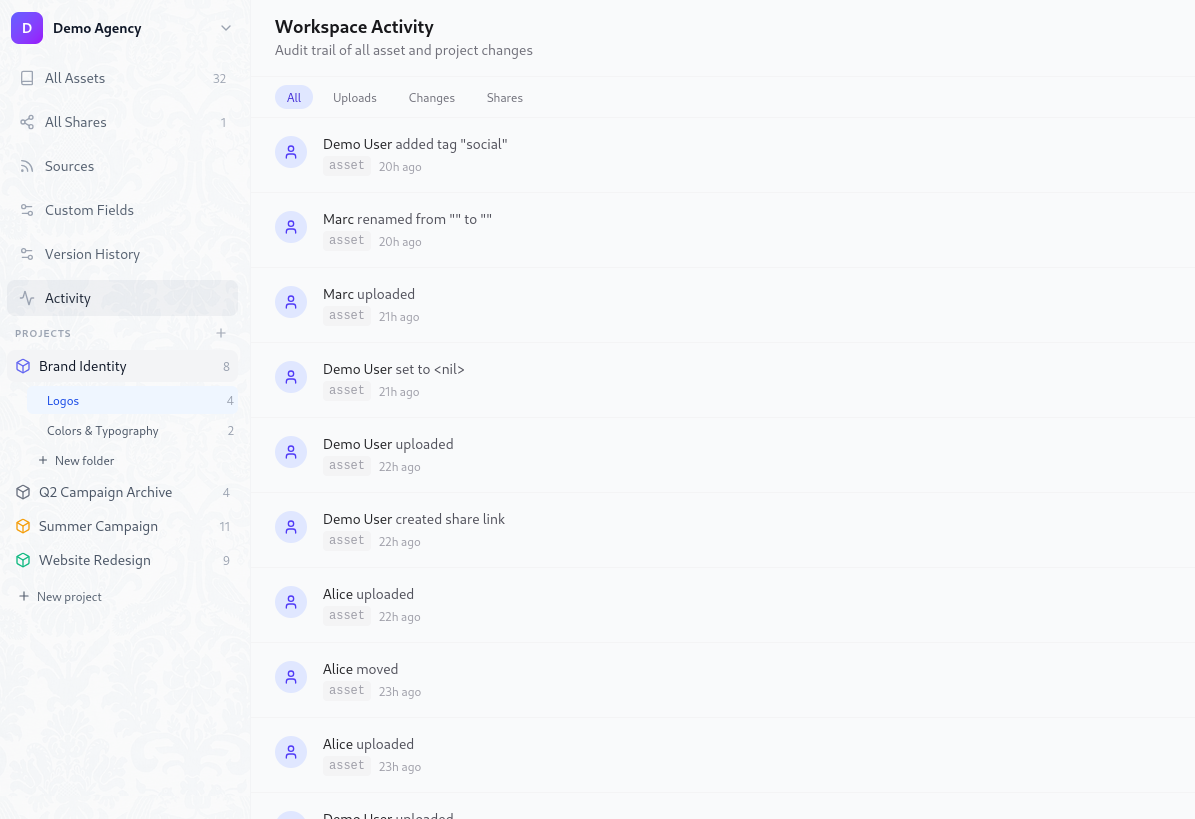
The main dashboard includes a Recent activity panel showing the 20 most recent events across your entire workspace. Filter by actor, event type, or project. Refreshes every 60 seconds.
Exporting the activity log
Go to Settings → Export → Activity log to download a CSV of all workspace events within a date range. Columns include event type, asset name, actor, timestamp, and a plain-text summary.
This is useful for client billing documentation, project post-mortems, or compliance evidence ("here is a full record of every change made to these deliverables").